Project request management on SharePoint!​

4 Best Practices For Project Request Management Using SharePoint

Did you know SharePoint can be extended with BrightWork for full project request management to track the progress of your project request, from initial request to approved project creation?

Here are four best practices to help you get started with project request management on SharePoint!

1. Define a Process (the non-technical stuff)

Before you start using a tool to implement a process (or any process really, not just Project Request Management), you want to get it down on paper first. But when it comes to your process for Project Request Management, for example, you will need to decide things like:

  • Is there going to be a committee to approve projects? And if so, who is going to be on it?
  • What kind of data about the project requests will be required?
  • What is the timeframe for approving projects?

2. Create a Command Center (including reports)

Second, you’ll want to have a PRM “Command Center” in SharePoint, a one-stop-shop where particular departments, or perhaps the entire organization, can go to submit their project requests and track the progress. You’ll also want to include reports that where requesters can check on the status of their various requests, maybe some metrics, etc.

Here’s a sample of our command center, where you can travel through the entire project request life-cycle – from logging  a request all the way to project site creation after the project is approved.

project request management on sharepoint3. Define the Intake Form

If you didn’t do this when you defined the PRM process, you want to create a project request form in SharePoint. If you ask for too little data, there won’t be enough information as to what it is you are proposing. If there is too much information, folks can get turned off and simple pick up the phone or start emailing, defeating the purpose of the SharePoint template! Here is a sample intake form:

project request intake form

4. Notify and Update Interested Parties Automatically

Finally, you can’t rely on people to regularly visit the site  to find out that there is something waiting in their queue for approval. In the form above, you can see some fields “Requested By,” “Reviewer,” and “Approver.”  All of these people have to take some sort of action on the project request, and in SharePoint they can be alerted automatically that there is a request waiting for them to review, or that your project has been approved – and you are now responsible to manage it!

Get your teams working together: Announcing Microsoft Planner

Get your teams working together: Announcing Microsoft Planner

FEATURES

Get your teams working together: Announcing Microsoft Planner

Productivity apps are all the rage at the moment, although they should not be considered a ‘magic bullet’ for organising your schedule or curing procrastination.

While increasing productivity is not a new thing – individuals and organisations have always striven to get more out of their day or their workforce – without a doubt, we all have more distractions and demands on our time, which productivity apps potentially provide a solution for.

Productivity Apps: Do they actually work?

Developers make all sorts of claims for their apps and their ability to increase productivity, however, they are sketchier on the hard data to back them up. With such a diverse field of products, it’s hard to come up with any real comparisons in their performance. However, a study from Salesforce suggests that productivity apps can boost worker productivity by 34 per cent. The report also discovered that 60 per cent of employees in SMEs and large enterprises use apps for work-related activities.

Yet to be effective, productivity apps need to be properly integrated into the workplace. This is one of the major stumbling blocks organisations have – getting everyone to adopt the technology and use it so that the whole team benefits. Since many people already have their own productivity apps downloaded on their mobile devices, it can be difficult to get buy-in on a new system.

People also bemoan the time it takes to get set up and started, questioning whether it is a productive use of their time managing their productivity app! Therefore, if your organisation is planning to implement a new app it is important that employees receive the right level of support to enable them to use if effectively.

Another issue is how to integrate the app with the IT systems the organisation is already using. While most apps allow a certain amount of integration between them and other tools, these are not necessarily the ones your business is using. Furthermore, there are security issues that organisations need to be aware of when employees are using apps with a personal account. This could mean that sensitive company information is taken out of your organisation’s secure environment, and stored on the servers of a third-party app developer, without the protection extended by a business account.

Microsoft Planner

This is why the introduction of Microsoft Planner could be the solution your organisation is looking for. Microsoft, who has produced arguably the most well-known and utilised productivity app of all time – Microsoft Outlook – is getting in on the current ‘productivity app-ism’ with a new addition to their Office 365 suite – Planner.

As many businesses, large and small, already use Office 365, integration with many of the organisation’s IT systems is straightforward and intuitive, increasing the likelihood of take-up by members of staff. If you already have a subscription, there is no additional fee and it all integrates with your existing logins and Office 365 apps.

Do You Need Microsoft Planner?

office 365 plannerEssentially it is a task-planning tool designed to enable teams to collaborate and track work better. Users of Trello and Asana will be instantly familiar with its card-based layout – the cards representing tasks – with a drag and drop interface to record progress. There are also some neat colour coding tricks, and visually appealing and easy to read dashboards to help teams track progress.

If you are not familiar with team task planning apps, the clue is really in the name – they allow teams across your business who are working towards a single goal or outcome to organise their tasks, understand where the initiative as a whole is going, identify where issues might be and collaborate to reach the goal quicker. Essentially, a clever digital organiser for teams.

What they are not is a project management tool, for which Microsoft has ‘Project’. Project management applications usually focus on having a single person or team driving the initiative (the project manager(s)) and distributing tasks for the team to complete. Many organisations consider this an outmoded way of working but for complex projects, it is usually still considered necessary.

Planner bridges the gap between project management tools and personal task lists, which you can set up in Outlook. Instead, Planner is designed for team collaboration, providing a tool to assign tasks to individuals, to manage progress, for internal communication about team projects, and to provide an overview of projects in progress.

Personally, thinking about my own company and how we manage projects and workload here, I think productivity apps, whether Planner, Trello or any other, can be a valuable tool. As well as providing everyone with the big picture and the finer detail, it also increases accountability as individuals can see how their activities (or lack of) impact on each project and each other.

With email notifications set up to remind you of a forthcoming deadline, it can certainly focus the mind on the job and help individuals prioritise their workload.


Bruce Penson, Managing Director of Pro Drive IT

How to write the perfect progress report – dos and don’ts

Susanne Madsen 
Developing Project Leaders

If you work as a project manager, chances are that you have completed dozens of progress reports during your career – if not hundreds! But how effective have they been? Have you had a clear purpose when writing the reports, for instance by wanting your stakeholders to take certain action as a result of them? Or did you fill them in because it was one of those routine tasks that had to be done?

You may have been very conscientious and particular when filling in your reports, but unfortunately not everyone is, and as a result the weekly status report becomes one of those artifacts that is part of the process without adding much value.

Top mistakes
Some of the classic mistakes that project managers make is that they include too much static information and not enough about what the real project issues are. In that way the report is not a true reflection of what is really going on. If you just write about what happened during the last reporting period and what you will do during the next reporting period, without mentioning how that compares to plan and what the real risks and issues are, there is no incentive for executives to pay attention to it. In many cases the report is even attached in an email without any context or description, meaning that executives who rely on smartphones are unlikely to ever get to the information.

The perfect progress report
So, what does a perfect status report look like? Well, first and foremost it’s a simple report, preferably on one page, which adds real value by providing an overview of milestones, risks, issues and budgetary information at a minimum. Here are some guiding dos and don’ts:

Don’t include too much static information about the background of the project.
Do include the name of the sponsor and the project manager.
Do keep the information to one page.
Do include the top 5 risks and issues, including owner and mitigating action.
Do include information about the budget and how you are tracking to it.
Do include an overview of the major milestones, their planned dates and a RAG status of each.
Do list key successes and achievements from last period.
Do list any earned value metrics you may have, but keep it simple and graphical.
Do make it clear what action you want people to take; is this report just for information or do you require a decision from anyone?
Don’t send out the report via email without providing any context in the body of the mail. Executives may never read the report, so provide a summary in the email itself.
Don’t send out bad news in a project report with out speaking to people first. You don’t want your sponsor to read about a major issue without being there to explain the situation.

Seri MS Project : apa arti Effort Driven


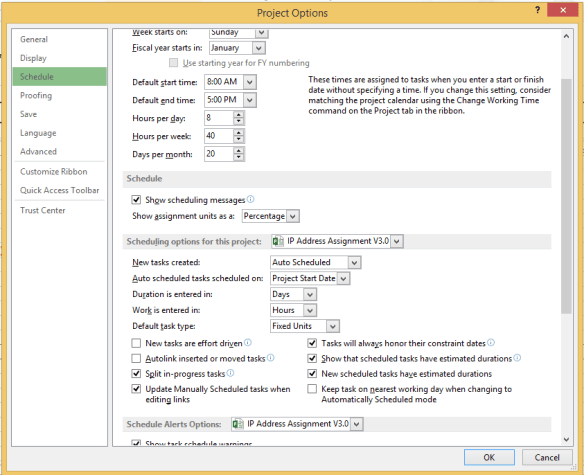
anda masuk ke option ms project,

masuk ke schedule,

ada pilihan centang, new task are effort driven ?

apa arti effort driven:  adalah task atau activity di project anda tidak tergantung dgn resource, berapa pun resource yg anda assign, duration task akan tetap sama.

berbeda bila kita unchecked, ketika ada tambahan resource , penambahan itu akan mengurangi waktu duration task tersebut.

masing2 activities mempunyai characteristic berbeda, jadi anda harus paham maknanya,

misal membersihkan halaman semakin banyak orng yg mengerjakan akan semakin cepat selesai, dan ketika seorang artis mengerjakan karya inovasi, belum tentu penambahan orang juga align dgn lbh cepatnya waktu kerja.


effort driven

Seri MS Project: kenapa status late, padahal tanggal belum lewat.

Jangan gemes, dgn ms project,

Konsep project management, setidaknya harus ada kita pelajari, dan jangan pernah membayangkan ms project adalah seperti Excel.

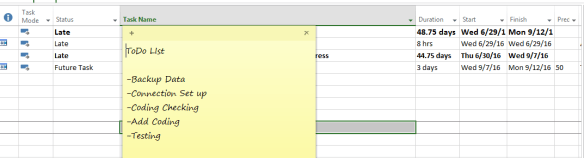
contoh, tanggal masih jauh, tapi statusnya Late-terlambat.

Status late


caranya adalah, di menu project, masuk project information:

ubahlah status date dan start date dgn benar.

project Information.PNG


setelah diubah sbb:

Project Information_after


setelah anda ok in,

bagaimana statusnya sekarang, dari late menjadi future task.

status after tune up

terimakasih