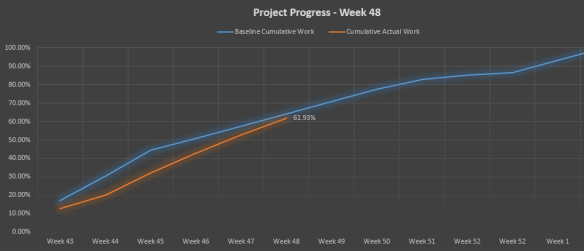
download excel nya disini S Curve- Project Progress ( baseline-actual)

Michael A. Steinberg, PMP, Senior Project Management Consultant, Project Assistants, Inc. (MPA member, Atlanta, GA)
How many of you felt frustrated with Microsoft Project not behaving like you expect it to?
This may seem obvious, but it’s worth a mention. A new user may look at the grid-like layout of the default “Gantt Chart” view and assume that because it looks like a spreadsheet that it also behaves like a spreadsheet. They quickly discover that the tool automatically performs some scheduling functions, like, for example, changing start and finish dates. Not understanding how or why it does this, they quickly become intimidated and abandon the tool. The bottom line: Project is a scheduling tool. Scheduling tools will change dates!
Duration = Work/Units
Understanding of the meaning of these three terms (See Project Help), as well as the formula itself, is key to understanding how Project schedules a task. To anyone who has changed any of these three parameters on a task, without understanding this formula, the changes that Project makes to the other parameter(s) can sometimes seem totally unexpected or bizarre.
In my experience, not knowing this formula is the biggest cause of frustration that people experience with the tool. Knowing the formula will not stop Project from doing things that you don’t expect, but it will allow you to know what changes to make so that it will do what you want.
What will Project do when you change either work, duration or units on a task – that is, which of the others will it change and which will it keep constant? The Task Type parameter is what tells Project how to behave. The general rule is:
If work, units or duration is fixed and you change one of the others, Project will recalculate the third, but wont change the one that’s “fixed”.
Even if you don’t set task type explicitly, each task defaults to one of the three – and the system default is “Fixed Units”. This can cause problems in many cases, because since most technical tasks are driven by the amount of work effort required, they should generally be “fixed work”.
As mentioned in the previous tip, most technical tasks are driven by the amount of work effort, not by duration. Therefore, it is a good practice to estimate how much heads-down work effort a task is likely to need, and estimate the number (or fractions) of resources (which is the definition of units), and let the tool calculate duration.
Duration is dependent on many things – not only work effort and assignment units, but calendars, task splits and a number of other factors. Often, when we estimate duration first, we are really applying the basic scheduling formula (Tip number 2) in our heads. Why not let the tool do the math!
If a task is effort driven, the total task work will remain the same if you add or remove resources. If you add a resource, the total amount of work effort will be divided among all of the resources, including the new ones, thereby reducing duration.
A good practice when adding resources to a task, even if you do understand this concept, is to explicitly specify the work and units for each assignment, so you remain in control of the division of labor. Do this in a usage view or the bottom half of a split-screen view.
When you assign a resource to a task, the default level of “assignment units” is 100%. This means that the resource will be assigned full time on that task for its entire duration! Is that what you always want? Probably not, but it is easy to fall into that trap. This will result in a serious distortion of their true allocation. Be especially careful when people are assigned to concurrent (parallel) tasks. Be sure not to assign them full time in these cases.
Constraints, such as “Start no earlier than”, or “Finish no later than”, are really telling Project not to schedule a particular task. Sure, there are legitimate uses for them, such as a dependency on a truly external event. However, the best practice is to estimate each task and its dependencies, and let Project adjust the schedule. This is called “Dynamic Scheduling”.
Hard (or “inflexible”) constraints such as “Finish no later than”, should be avoided if possible. Hard constraints can cause scheduling conflicts, where Project may be forced to choose to ignore either a constraint or a dependency – again, a situation where you are tying one hand behind its back.
“What if my sponsor mandates an end date?” you say. Use deadlines instead. Deadlines will flag a missed milestone but will not disable scheduling of the task.
One note about constraints: When you manually key in a start date, you are effectively setting a “Start no earlier than” constraint. That is why project sometimes ignores a date that you type in.
Estimating percent complete is not a best practice for many reasons, not the least of which is its vulnerability to abuse. A better practice is to ask a resource (or manager) to report actual work and to estimate remaining work, and let the tool calculate percent work complete. (In fact, when we estimate percent complete, aren’t we really mentally estimating those two amounts and doing the math in our heads?)
Another note: In Project, the “% Complete” field really means “% duration complete”, as distinguished from the “% work complete” field. Make sure you understand the difference and which you want to use.
Yes, those annoying messages like “This action will cause a scheduling conflict…” are really your friend. They warn you of potential problems, like the one described in the previous tip. Deal with them immediately, because their consequences may become more difficult to trace back to their root causes when they are no longer fresh in your mind.
As anyone who has used automatic leveling knows, there is really no magic to it. It simply delays the start (or continuation) of tasks in your schedule until resources are no longer overallocated. This is not always practical.
The best practice is to use some thought when first assigning resources to tasks. For example, don’t assign the same person full time to two tasks at the same time. If you are careful, leveling can work for you. If you are not, it is sure to make things worse!
With all of the collaboration tools in the Enterprise Project Management (EPM) environment, like notifications and SharePoint, one might be tempted to think the tool can communicate for us. Wrong! Ninety percent of a project manager’s job is interpersonal communication. EPM tools will facilitate communication and relieve us of some of the more mundane tasks so we can spend more time communicating – but it won’t replace it.
This point expands on the previous tip. Microsoft Project is a great scheduling tool. But that’s all it is. PMI® identifies 47 processes that a project manager performs. Project really only supports a handful of those processes. As they say, “a PM tool makes a good manager better faster and a bad manager worse faster.” Microsoft Project will facilitate some of our more routine scheduling tasks, so that we can devote the bulk of our time truly managing our projects.
Project management is not only schedule.
[1] Thanks to Dr. Fred Oettle, Director of Training at Project Assistants, for articulating these concepts in our training.
MS project -What causes over allocation, and manually resolved an over allocation.
• You can find on MS project : in Tools menu –click Level Resources
• Resource leveling is the process of delaying or splitting a resource’s work on a task to resolve an overallocation.
• The options in the Level Resources dialog box enable you to set parameters about
how you want Project to resolve resource overallocations.
• Project will attempt to resolve such overallocations when you choose to level resources. Depending on the options you choose, this might involve delaying the start date of an assignment or task or splitting the work on the task.
• Resource leveling is a powerful tool, it does a few basic things:
o Delays tasks, splits tasks, and delays resource assignments.
• Resource leveling is a great fine-tuning tool, but it cannot replace your good judgment about resource availability.
What is Oracle E Business Suite Projects
Oracle Projects consists of the following products:
• Oracle Project Costing
• Oracle Project Billing
• Oracle Project Resource Management
• Oracle Project Management
• Oracle Project Collaboration
• Oracle Project Intelligence
• Oracle Project Portfolio Analysis
The applications that make up the Oracle Projects suite work together to provide a
complete enterprise project management solution. They give you a flexible approach
to defining and managing your projects and the people, schedules, deliverables, and
finances associated with them.
The following sections provide detail information on each of these products:
Oracle Project Costing
• Provides an integrated cost management solution for all projects and activities within an enterprise. With Project Costing we can manage costs across currency and organizational boundaries.
• Project Costing also acts as a central repository of project plans and transactions, processes project costs, and creates corresponding accounting entries to satisfy corporate finance requirements.
• Project Costing gives complete and timely access to project performance information and the resulting accounting impacts thereof.
• Detailed cost information to monitor project performance in a productivity-enhancing format, and enables to track the total cost of running the business.
Oracle Project Billing
• Oracle Project Billing enables enterprises to simplify customer invoicing, streamline corporate cash flow, and measure the profitability of contract projects.
• Using configurable accounting rules, Oracle Project Billing extends Oracle Project Costing functionality by processing actual costs, creating corresponding accounting entries for revenue accrual to satisfy corporate finance requirements, and creating customer invoices for project work.
• With Project Billing, project managers can review project invoices online and analyze project profitability, and accounting managers can see the corporate impact of project work.
Oracle Project Resource Management
• Oracle Project Resource Management manages human resource deployment and capacity for project work.
• It enables efficient coordination of project resource needs, profitability, and organization utilization through the location and deployment of qualified resources to projects across the enterprise.
• Oracle Project Resource Management empowers key project stakeholders–such as project managers, resource managers, and staffing managers–to make better use of their single most critical asset: their people.
Oracle Project Management
• Successful project management requires continuous decision-making in order to meet expected delivery and financial targets.
• Oracle Project Management gives project managers the visibility and control they need to deliver projects successfully and operate efficiently.
• It presents project managers with a comprehensive integration of the major elements of project management: plans, progress, issues, changes, documents, effort and cost, financial information, performance, and status reports.
• With Oracle Project Management, project managers can proactively plan and forecast their projects, manage change and performance in real-time, focus on desired project outcomes rather than data management, and make better decisions with less effort.
Oracle Project Collaboration
• Oracle Project Collaboration assists members of global or virtual project teams in the ongoing effort to review and complete project tasks by enabling them to collaborate and communicate with ease.
• Project teams can also include people from inside and outside an enterprise — each requiring personalized access to project information.
• Oracle’s integrated, collaborative system enables all relevant project stakeholders to share information, anytime and anywhere. With complete visibility to assigned tasks, issues, and deliverables, team members work together more efficiently, make more effective decisions, and deliver superior results faster.
Oracle Project Intelligence
• Oracle Project Intelligence delivers aggregate and detail information about the projects in an enterprise directly to the people who need it.
• Executive managers can use Oracle Project Intelligence to review information summaries in both graphic and tabular formats and drill down to specific projects and tasks as necessary.
• Oracle Project Intelligence is a comprehensive reporting solution that provides cross-project visibility to opportunity bookings, resource utilization, and profitability and activity analysis. Utilizing secure, role-based portals, it provides daily summaries of key metrics including revenue, cost, margin, bookings, backlog, and utilization.
Oracle Project Portfolio Analysis
• Oracle Project Portfolio Analysis leverages the rich project management functionality
of Oracle Projects to facilitate evaluation and collection of projects in a portfolio.
• It uses financial criteria, strategic goals, and information on available funds to help us evaluate, prioritize, and select the right projects to match your business objectives.
• It enables to standardize project funding decisions based on business and financial objectives by defining weighted criteria and targets, such as return on investment, market fit, and technology risk.
• Project Portfolio Analysis provides graphic charts to compare and rank new and continuing projects. We can also create and compare multiple “what-if” scenarios to understand the impact of changes to projects and finances.
What is SAP Project Management,SAP Project System
• SAP PS is a project management tool that provides you with support in all Knowledge areas of the project.
• SAP PS provides structures that you can use to model and organize projects flexibly. You can plan and monitor dates, costs, revenues, budgets, resources, materials, and so on, in these structures using the relevant tools and reports from SAP PS.
Integration
• The Most powerfull from SAP PS is the integration among others main functional with most affected in project.
• The high degree of integration between the Project System (PS) and other R/3 application components means that you can plan, execute, and account for projects as part of your normal commercial procedures.
• This means the Project System has constant access to data in all the departments involved in the project.
An Overview of Project Procedure:
• Project Structuring (Project Builder,Project Planning Board)
• Detailed Planning (Cost,Revenues,Payments,Dates, Materials,Capacities,Resources)
• Execution (Production, Material Procurements,activity allocation,Confirmation,Billing,Periode end closing,Progress analysis)
• Completion (Periode end closing, Archiving,Technical Completion)
Organizational Structures
Structures
• For successful project management you must model all the processes in a project
and be able to display their structure and the sequence of events.
• The Project Systems make this possible at all times by providing basic data, standard structures,and templates which greatly simplify creating and planning projects.
• Before you can run a project in its entirety, you must first describe the project goals precisely and create a structure for the project activities that are to be carried out. A clear project structure is the basis for successful project planning, monitoring, and control.
• Depending on the nature of the project and the emphasis in controlling, structure your project using a work breakdown structure (WBS) or a network. The activities in a network can be linked using relationships to activities in the same network or in another network.
Project Definition
• The project definition is a general description of the project you want to manage.
• You use it to record the ides behind the project. At this point in time you do not need to create a work breakdown structure or activities. Later on, the project definition is the container for all objects that are created within a project, for example for WBS elements, network activities.
• It also contains organizational data that is valid for the whole project such as:
o Controlling Area
o Business Area
o Company Code
o Plant
o Factory Calendar
Work Breakdown Structure
• The work breakdown structure (WBS) is a hierarchical model of the project, providing a view of the phases and functions. It splits the project into manageable parts.
• The work breakdown structure
o Forms the basis for planning, coordinating, and controlling the project
o Shows the work, time, and money spent on a project
o Makes the structure of a project transparent and documents responsibilities
o Forms the basis for both budgeting and the planning and analysis of costs
in project controlling
Network and Activities
• The actual processing of a project is planned using networks.
• Networks describe Networks the sequence in which projects are processed.
• The main elements of networks are activities and relationships.
• Networks form the basis for planning, analyzing, and monitoring time schedules, costs and resources.
• You use activities in networks to plan personnel resources, other capacities, Activities materials, PRTs, and service requirements. You can add detail to your planning by using subnetworks and activity elements.
• For tasks that require capacities (machines or personnel) in your business, create internally processed activities.
• For tasks that are to be processed by outside contractors, use externally processed activities. Such activities form a link to Purchasing. You can refer to a purchasing info record that contains information such as prices and delivery dates for external processing. The system automatically creates a purchase requisition from the data in an externally processed activity.
Milestones
• Milestones are events in a project to which particular importance is attached or which trigger a predefined function.
• In general, they indicate transitions between different phases or departments. You can assign milestones to both WBS elements and activities.
• In the Project System, milestones are used to:
o Trigger predefined functions in network activities
o Determine the percentage of completion (milestone technique in progress
analysis)
• You can use predefined milestone functions in networks to trigger a sequence of steps.
Examples include:
o Releasing activities
o Including standard networks
o Creating networks and subnetworks
o Triggering workflow tasks
Templates
• Although every project is unique, it is often possible to standardize structures and processes, in whole or part, to use them again.
• You can use these templates to keep a record of structures specific to your business and product; this can help reduce work and product management in later projects.
• For example, you only have to create a standard network once and you can copy it many times to create new networks with the same structure.
Simulations
• You use simulation to plan alternatives, that is the classic What-If cases.
• They are created manually, can be changed and deleted.
 sharing is caring